
Running Facebook Ads without tracking is like driving blindfolded. Facebook Ads Manager shows you clicks, but UTM parameters tell you what happens after - the real story. UTMs are small URL tags that help you track ad performance in tools like Google Analytics. Here's why they matter and how to use them:
- What are UTMs? Tags like
utm_source=facebookare added to your URLs to track traffic sources and user behavior after clicking your ad. - Why use them? They fix tracking gaps caused by privacy changes (like iOS 14) and let you measure campaign performance beyond clicks - think bounce rates, purchases, or time on site.
- Key UTM tags for Facebook Ads:
utm_source: Marks Facebook as the traffic source.utm_medium: Differentiates paid ads from organic traffic (e.g.,paid-social).utm_campaign: Names your campaigns (e.g., "ramadan_sale_2026").utm_content: Tracks specific ad creatives (e.g., video vs. carousel).utm_term: Monitors audience segments or keywords.
Pro Tip: Use dynamic parameters like {{campaign.name}} or {{ad.name}} to automate tracking and ensure consistency. Tools like Facebook's URL builder or WAConversionTracking simplify the process, saving time and reducing errors.
In short, UTMs give you control over tracking, improve your ROI analysis, and help you make smarter ad decisions - all while keeping your data clean and actionable.
How to Set Up UTM Parameters For Facebook Ads + Free Tool
5 Core UTM Parameters for Facebook Ads

Facebook Ads UTM Parameters Guide: 5 Core Tags and Their Usage
When running Facebook ad campaigns, using UTM parameters is crucial for tracking exactly where your visitors come from and how your ad spend translates into results. These five tags work together to provide a clear picture of your traffic sources, even down to the specific ad creative that brought someone to your site. Here's a breakdown of each parameter and how they help you gather actionable data.
utm_source: Pinpointing Facebook as the Traffic Source
The utm_source tag identifies the platform that directed traffic to your site. For Facebook Ads, always use "facebook" in lowercase to keep this data distinct from other sources like Google or email campaigns. If you're running ads across Meta platforms like Instagram or Messenger, the dynamic parameter {{site_source_name}} is a smart choice. It automatically adjusts to reflect the exact platform, helping you track user behaviour across Meta's ecosystem.
utm_medium: Categorising Paid Social Traffic
The utm_medium parameter helps you differentiate between paid and organic traffic. For Facebook Ads, use terms like "paid-social" or "cpc" to clearly label paid traffic. This ensures you don’t mix up your ad clicks with organic engagement, giving you a more accurate picture of your return on ad spend.
"URL parameters shouldn't replace Ads Manager metrics, but they provide invaluable backup and insights that Ads Manager alone can't give".
utm_campaign: Organising Campaign Data
This parameter is all about naming your campaigns in a way that makes your data easier to analyse. Use descriptive names like "winter_clearance_2026" or "ramadan_sale_2026", or opt for the dynamic parameter {{campaign.name}}. Since Facebook locks campaign names at the time of publication, using {{campaign.id}} can help maintain consistency if you frequently rename campaigns.
utm_content: Tracking Different Ad Creatives
The utm_content tag is essential for comparing the performance of individual ads within a campaign. Whether you're testing a video ad against a carousel ad or experimenting with different colour schemes, this parameter keeps things organised. Use values like "video_v1" or "carousel_blue", or let {{ad.name}} automatically capture the ad name. Without this tag, it’s much harder to determine which creative elements are worth your investment.
utm_term: Monitoring Keywords or Audience Segments
While originally designed for tracking keywords in search campaigns, the utm_term parameter can be repurposed in Facebook Ads to monitor audience segments or ad sets. Use it to label groups like "lookalike_purchasers" or "retargeting_cart_abandoners", or rely on {{adset.name}} for automatic tracking. This level of detail can highlight whether cold audiences or retargeting efforts are delivering better results, helping you allocate your budget more effectively.
| UTM Parameter | Purpose for Facebook Ads | Recommended Value/Example |
|---|---|---|
| utm_source | Identifies the platform | facebook or {{site_source_name}} |
| utm_medium | Identifies the paid channel | paid-social or cpc |
| utm_campaign | Identifies the specific campaign | winter_clearance_2026 or {{campaign.name}} |
| utm_content | Differentiates ad creative | video_ad_v1 or {{ad.name}} |
| utm_term | Identifies audience/ad set | lookalike_purchasers or {{adset.name}} |
How to Create UTM Parameters in Facebook Ads
Facebook Ads Manager makes setting up UTM parameters straightforward. The platform includes a built-in tool at the Ad level within the Tracking section, so there's no need for external software or complex spreadsheets.
Once you understand the basics of UTM parameters, you can apply them directly in Ads Manager.
Using Facebook's URL Parameter Builder
To start, open Ads Manager and select the ad you want to track. Scroll down to the Tracking section and click on "Build a URL Parameter." This will open a form with fields for Campaign Source, Medium, Name, Term, and Content - each aligning with standard UTM tags.
Here’s how to fill out the fields:
- Campaign Source: Enter "facebook" in lowercase or use the dynamic placeholder
{{site_source_name}}if you're running ads across multiple platforms like Instagram or Messenger. - Campaign Medium: Use "paid-social" to ensure Google Analytics categorises the traffic correctly.
- Campaign Name: Either type a custom name (e.g., "ramadan_sale_2026") or use
{{campaign.name}}to automatically pull the campaign title. - Campaign Content: Use
{{ad.name}}or{{ad.id}}to distinguish between different creatives.
Stick to lowercase values and use underscores or hyphens instead of spaces. If you want to include extra data like ad set names, click "Add Parameter" and input something like {{adset.name}}. After filling out the fields, hit "Apply" to save your changes.
"URL parameters shouldn't replace your Ads Manager reporting, they can provide a backup related to the traffic sent to your website from an ad... They can also provide additional insight that Ads Manager alone can't provide." – Jon Loomer, Facebook Ads Expert
Adding Dynamic Parameters for Automatic Tracking
Dynamic parameters (also called macros) are a time-saver. They automatically pull data from your campaign settings, so you don’t have to manually input values for each ad. Placeholders like {{campaign.name}}, {{ad.name}}, or {{placement}} are filled in by Facebook when the ad is clicked, ensuring consistency across multiple ads.
Keep in mind that Facebook locks campaign, ad set, and ad names at the time of publication. To avoid attribution errors caused by renaming campaigns later, many marketers prefer using ID-based macros like {{ad.id}} or {{campaign.id}}, which remain constant.
Here’s a quick reference for Facebook Ads dynamic parameters:
| Dynamic Parameter | What It Tracks | Example Output |
|---|---|---|
{{site_source_name}} |
Platform where the ad was clicked | fb, ig, msg, an |
{{placement}} |
Specific ad location | Facebook_Feeds, Instagram_Stories |
{{campaign.name}} |
Campaign name at publication | summer_sale_2025 |
{{ad.id}} |
Unique numerical ad identifier | 23845917166800246 |
Best Practices and Common Mistakes
Best Practices for Consistent UTM Tagging
- Stick to lowercase for all UTM values. Why? Google Analytics treats "Facebook", "facebook", and "FB" as entirely different traffic sources. This can scatter your campaign data into multiple categories. Among websites using Google Analytics (91% of the top one million), this issue is a frequent headache for marketers.
-
Replace spaces with hyphens or underscores. Spaces in UTM parameters get encoded as
%20, making URLs messy and harder to read. For instance, instead of this:utm_campaign=ramadan sale 2026Use this:utm_campaign=ramadan_sale_2026. -
Use a consistent medium like
paid-social. If you useutm_medium=cpc, tools like Google Analytics might mistakenly categorise your Facebook traffic as "Paid Search" instead of "Paid Social". - Maintain a shared spreadsheet for UTM tracking. This ensures everyone on your team uses the same approved values across all campaigns and channels. Without this, conflicting tags can creep in. It’s worth noting that around 30% of companies fail to maximise UTM usage in over 30% of their campaigns, and about 20% lose out on accurate metrics due to poor tagging practices.
By sticking to these practices, you’ll ensure your UTM parameters accurately reflect your campaign data. This clarity plays a key role in improving your overall tracking and reporting strategies.
Common UTM Mistakes to Avoid
- Never add UTM parameters to internal links. Doing this - like tagging a homepage banner that links to a product page - overrides the original referral source. It also starts a new session in Google Analytics, which can wreck your attribution data.
-
Don’t rename campaigns after they’re live. Dynamic values like
{{campaign.name}}get locked when you publish ads on Facebook. Changing the campaign name later creates data discrepancies. Instead, use ID-based parameters like{{ad.id}}, which remain stable. - Avoid editing UTM tags on active ads. Tweaking UTMs mid-campaign can reset your ad’s learning phase, which can hurt performance. Finalise your naming conventions before launching.
| Common Mistake | Impact on Reporting | How to Fix It |
|---|---|---|
| Inconsistent capitalisation | Splits one source into multiple rows (e.g., "Email" vs "email") | Enforce a lowercase-only policy |
Using utm_medium=cpc |
Misattributes social traffic to "Paid Search" | Use utm_medium=paid-social |
Missing utm_source or medium |
GA may categorise the session as "Direct" | Always include source, medium, and campaign |
| Using spaces in tags | Creates messy URL encoding (e.g., "summer%20sale") | Use hyphens or underscores |
| Changing UTMs mid-campaign | Splits campaign data into "before" and "after" segments | Finalise naming conventions before launching |
- Test everything before launching. Always click through a test ad and check the Real-Time report in Google Analytics. This ensures your source, medium, and campaign are being tracked correctly. Catching errors here saves you from dealing with messy data later.
sbb-itb-0a82e4d
Advanced UTM Parameter Strategies
Using UTM Parameters with Google Analytics
Facebook Ads Manager can tell you how many clicks and impressions your ads are getting, but it doesn't reveal what happens after someone lands on your site. That’s where Google Analytics steps in, offering insights into post-click behaviour like bounce rates, session durations, and page views. By tagging your ads with the utm_content parameter, you can compare the performance of different creatives. For example, you can see whether a video ad or a carousel generates more meaningful engagement - not just clicks. This approach bridges the gap between ad spend and user activity, giving you a more comprehensive view of your campaign's impact. Interestingly, over 89% of websites rely on Google Analytics to measure their traffic and performance.
"In 2025, with privacy changes making Facebook's own tracking increasingly unreliable, having your own source of truth through UTM tracking isn't optional anymore. It's essential." – Cedric Yarish, Author, AdManage
Dynamic parameters like {{placement}} can help you identify which placements - like Instagram Stories or the Facebook Feed - are driving the most engagement. To analyse this data in GA4, go to Reports > Acquisition > Traffic acquisition and set your primary dimension to Session source/medium or Session campaign. However, keep in mind that Facebook’s ad review process can sometimes cause a surge of "no-value" traffic when a campaign first launches. To get cleaner data, it’s often a good idea to exclude the first day from your analysis.
Automating UTM Tracking with WAConversionTracking
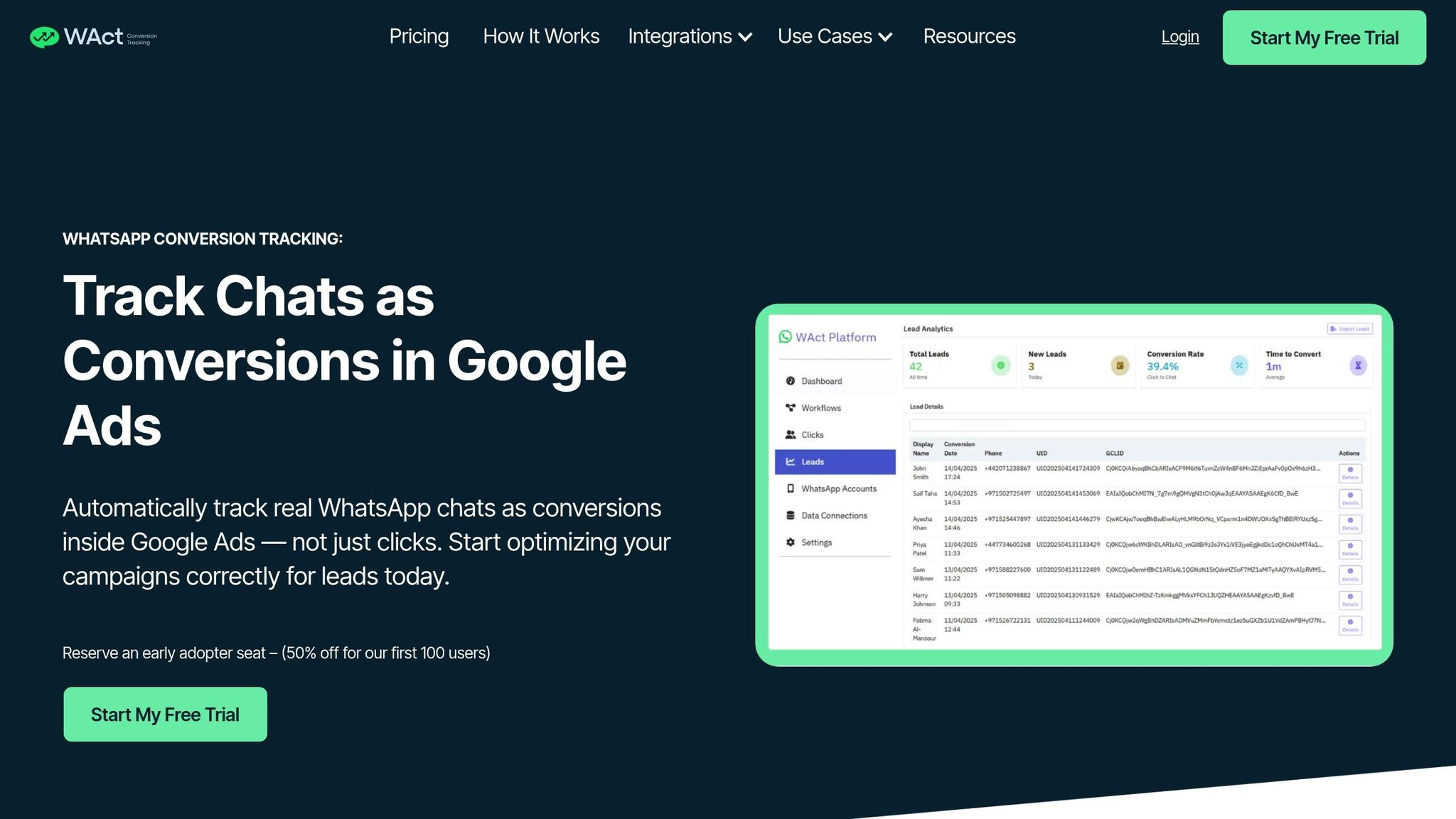
Manually tagging your URLs with UTM parameters can be tedious and prone to errors, which can lead to fragmented or inaccurate data. Automation takes the guesswork out of the process and ensures consistency. Tools like WAConversionTracking simplify this by automating UTM tagging and capturing WhatsApp leads. This tool not only tracks GCLID and UTM parameters but also sends conversion data directly to Google Ads. This creates a feedback loop that improves Smart Bidding strategies and minimises wasted ad spend - all without needing developer support. Account-level templates ensure every ad follows a consistent tagging structure, preventing issues like spikes in direct traffic caused by missing tags.
Tracking WhatsApp Leads with UTM Parameters
Tracking leads from platforms like WhatsApp can be tricky, but automation makes it manageable. When someone clicks on your Facebook ad and starts a conversation on WhatsApp, UTM parameters can follow the user and be captured by tools like WAConversionTracking. By using dynamic tokens such as {{site_source_name}}, you can automatically identify which platform - Facebook, Instagram, or Messenger - generated the lead. Similarly, tokens like {{ad.id}} provide precise and consistent tracking. WAConversionTracking captures these parameters as soon as the user clicks on the ad and sends the data directly to Google Ads as conversions. This ensures you’re getting accurate performance data, especially for WhatsApp leads, showcasing how tailored UTM strategies can turn raw data into actionable insights.
Manual UTM Setup vs. Automated Tools
After exploring advanced UTM strategies, let's break down the differences between manual setup and automated tools.
When setting up UTM parameters manually, you have to enter them into Facebook's URL Parameter Builder for every single ad you create. While this approach might work for a small number of ads, it quickly becomes overwhelming at scale. Manual entry often leads to errors like typos or inconsistent formatting, which can fragment your Google Analytics data. For instance, a small mistake like typing "cpc" instead of "paid-social" for the medium could skew your channel analysis.
On the other hand, automated tools, such as WAConversionTracking, use dynamic tokens to ensure consistency across all your ads. These tools allow you to set account-level templates with tokens like {{campaign.name}} and {{ad.id}}, applying standardised tracking automatically. This means you can launch hundreds - or even thousands - of ads in just minutes without worrying about errors. The efficiency gains from automation are undeniable.
| Feature | Manual UTM Setup | Automated Tools |
|---|---|---|
| Speed | Slow; requires per-ad configuration | Instant; applies account-wide templates |
| Error Rate | High risk of manual entry mistakes | Eliminated via enforced standards |
| Scalability | Limited; struggles with high volumes | Handles 1,000+ ad variations seamlessly |
| Consistency | Fragmented (e.g., "FB" vs. "facebook") | Unified; ensures standardised naming |
For agencies juggling multiple clients or businesses running extensive creative tests, automation is more than just a convenience - it’s a necessity. Many automated tools also include features to verify existing ads, flag errors, and suggest corrections, ensuring your data remains consistent. This streamlined approach not only saves time but also prevents costly tracking mistakes. When managing high-budget campaigns, accurate tracking is crucial for optimising performance and avoiding guesswork.
"URL parameters shouldn't replace Ads Manager metrics, but they provide invaluable backup and insights that Ads Manager alone can't give." – Jon Loomer, Facebook Ads Expert
Conclusion
Using UTM parameters effectively turns Facebook Ads tracking into a well-organised and measurable approach. With the challenges posed by iOS 14+ privacy updates and cookie restrictions, UTMs step in to provide detailed tracking. They capture post-click actions like bounce rates, session durations, and conversion paths - data that Facebook Ads Manager alone cannot fully uncover.
Key takeaways include enforcing lowercase formatting, setting utm_medium to "paid-social", and using dynamic tokens such as {{campaign.name}} and {{ad.id}}. These steps help avoid manual errors, keep your data consistent, and ensure every dirham of ad spend is accurately tracked.
For managing large-scale campaigns, automation tools like WAConversionTracking are indispensable. They allow you to apply account-level templates, ensuring consistent and standardised UTM tracking across all ads without manual input.
"In 2025, with privacy changes making Facebook's own tracking increasingly unreliable, having your own source of truth through UTM tracking isn't optional anymore. It's essential." – Cedric Yarish, AdManage
Whether you're tracking website conversions or tying WhatsApp leads to specific ads, implementing UTMs properly - by standardising values and leveraging automation - ensures precise attribution. This not only improves Smart Bidding but also reduces wasted ad spend, helping you achieve better campaign results.
FAQs
How can UTM parameters improve tracking for Facebook Ads?
UTM parameters are a powerful tool for tracking the performance of your Facebook Ads. They provide detailed insights into where your traffic originates, how users engage with your ads, and which campaigns deliver the best outcomes. By appending these parameters to your ad URLs, you can measure campaign success and accurately link conversions back to specific efforts.
This information helps you make informed decisions, fine-tune your audience targeting, and adjust your ad strategies to achieve a better return on investment (ROI). For marketers aiming to understand their audience's behaviour more deeply and enhance campaign results, UTM parameters are an essential resource in today's competitive advertising environment.
What are the best practices for setting up UTM parameters for Facebook Ads?
To track your Facebook Ads effectively and gain better insights into your campaigns, here are some practical tips for setting up UTM parameters:
- Stick to lowercase letters: This avoids any confusion caused by case sensitivity in your tracking data.
- Use a consistent naming system: Parameters like source, medium, and campaign should follow a standard format to keep your data organised and easy to interpret.
- Always include the essential parameters: Make sure to add source, medium, and campaign for a complete picture of how your ads are performing.
- Keep UTM values simple and clear: Descriptive yet concise values make it easier to manage and understand your data, especially for larger campaigns.
- Document your process: Establish clear guidelines for your UTM tagging to ensure consistency. Avoid adding UTMs directly into ad names to reduce confusion.
- Automate when possible: For bulk ad launches, automation can save time and reduce errors. Regularly review your UTMs to confirm they’re accurate.
By applying these tips, you’ll be better equipped to track conversions, fine-tune your campaigns, and make informed decisions that align with your marketing objectives.
Why is automating UTM parameter management essential for Facebook Ads?
Automating UTM parameter management plays a key role in maintaining accuracy, consistency, and efficiency when tracking your Facebook Ads campaigns. When UTM tags are created manually, there’s a higher chance of mistakes - such as typos or inconsistent naming conventions - that can lead to flawed data and unreliable performance insights.
By automating the process, UTM parameters are generated and applied automatically using predefined templates. This not only saves time but also reduces manual work and ensures uniform tracking across all campaigns. As your campaigns expand and become more complex, automation ensures your data remains reliable, helping you make better decisions and refine your marketing strategies with confidence.