
Track your Microsoft Ads performance with precision using UTM parameters. These tracking tags, added to your URLs, help you identify which campaigns, ads, or keywords drive traffic and conversions. While Microsoft Ads offers its own tracking system, UTM parameters integrate seamlessly with tools like Google Analytics, providing detailed insights into your ad performance.
Key Takeaways:
- What are UTM Parameters? Tags added to URLs to track ad performance (e.g.,
utm_source=bing). - Why Use Them? They provide detailed data for analytics tools, complementing Microsoft’s Click ID system.
- Setup Options:
- Enable Auto-Tagging for consistent tracking.
- Use Tracking Templates for custom setups.
- Add Final URL Suffixes for detailed tracking at the page level.
- Best Practices: Stick to consistent naming, avoid duplicate parameters, and test your URLs to ensure proper tracking.
For UAE businesses leveraging WhatsApp as a lead channel, tools like WAConversionTracking ensure UTM data is preserved and conversions are correctly attributed back to Microsoft Ads. This is especially useful as WhatsApp often breaks traditional tracking methods.
Start by enabling auto-tagging in Microsoft Ads and follow the outlined steps to streamline your tracking process.
Microsoft Ads Auto Tagging
How to Set Up UTM Parameters in Microsoft Ads

How to Set Up UTM Parameters in Microsoft Ads: 3 Methods
Getting your UTM parameters right is essential for tracking campaign performance and ensuring accurate data attribution in Microsoft Ads. The platform provides three main ways to tag your URLs: enabling auto-tagging for your entire account, creating custom tracking templates for specific campaigns, or using final URL suffixes to add parameters directly to your landing pages.
Here’s how to implement each method step by step.
Enabling Auto-Tagging in Microsoft Ads
Auto-tagging is a quick and easy way to add UTM parameters without needing to do it manually. To enable it, navigate to Campaigns > Settings > Account level options. You’ll find two options:
- Replace all existing tags: This removes any manual UTM tags and replaces them with Microsoft’s default tags.
- Keep existing tags and add any that are missing: This keeps your custom tags intact and fills in any missing data.
"Using UTM auto-tagging is the best way to add UTM parameters to your Bing Ads... you'll never forget to add UTM parameters to your ads, or accidentally add the wrong information."
- Aaron Beashel, Founder, Attributer
Once enabled, click Test to verify that 10 sample URLs update correctly. Keep in mind that these auto-tags won’t be visible within the Microsoft Ads interface - they’re added only when someone clicks on your ad.
Creating Tracking Templates for Accounts and Campaigns
Tracking templates give you greater flexibility by allowing customisation at different levels. These templates follow a hierarchy: Account > Campaign > Ad Group > Ad, where lower levels override higher-level settings.
Start your template with {lpurl}, which represents the landing page URL. A typical template might look like this:
{lpurl}?utm_source=bing&utm_medium=cpc&utm_campaign={Campaign}&utm_term={AdGroup}&utm_content={Keyword}
To apply this at the account level, go to Campaigns > Settings > Account level options, paste your template into the "Tracking Template" field, and save it. For campaign-level templates, head to Campaign settings, find the "Tracking Template" column, and input your parameters there.
"We recommend adding a default tracking template at the account level so that all the campaigns, ad groups, ads, and Sitelink Extensions use the same URL format."
- Microsoft Advertising
Tracking templates have a 2,048-character limit, and changes apply immediately without needing editorial review.
Adding Final URL Suffixes for Detailed Tracking
Final URL suffixes offer even more precision by appending parameters directly to your landing page URL. Unlike tracking templates, you don’t need to include {lpurl} - Microsoft automatically adds the suffix to the end of your final URL.
To set a suffix at the account level, go to Account level options and enter parameters like this:
utm_source=bing&utm_medium=cpc&utm_campaign={Campaign}
There’s no need to add a ?, &, or # at the beginning - Microsoft handles the formatting for you. Use the ampersand (&) to separate multiple parameters.
"We recommend placing tracking parameters that your landing page requires in a final URL suffix so that your customers are always sent to your landing page."
- Microsoft Advertising
Final URL suffixes follow the same hierarchy as tracking templates, with lower-level settings overriding those at higher levels. This approach allows you to maintain consistent tracking across your account while fine-tuning specific campaigns as needed.
Best Practices for UTM Parameter Management
Once you've set up UTM parameters, managing them properly is crucial for keeping your data clean and actionable. Effective management prevents fragmented data and ensures your analytics remain accurate.
Using Consistent Naming Conventions
UTM parameters are case-sensitive, which means "bing" and "Bing" are treated as entirely different traffic sources. This seemingly small oversight can mess up your data and make campaign analysis a headache. To avoid this, stick to lowercase for all parameter values.
"One capitalisation mistake just cost you 15% tracking accuracy and hours of manual data cleaning that can't fix historical records."
Another tip? Use hyphens as delimiters for clarity (e.g., spring-sale or 2026_02-uae-shoe_launch). Avoid spaces, as browsers convert them to "+" or "%20", which can complicate tracking. Keeping a centralised document that outlines parameter values for everyone on your team ensures consistency across campaigns.
To take it a step further, pair these naming practices with Microsoft Ads auto-tags for more reliable tracking.
Combining Microsoft Ads Tags with Standard UTMs
Microsoft Ads provides three auto-tagging modes: "Inactive" (no tags added), "Preserve" (fills in missing tags without altering existing ones), and "Replace" (overwrites tags with Microsoft defaults) . If you're using a mix of auto-tagging and custom parameters, the "Preserve" option is your best bet. This setting allows Microsoft to add standard tags like utm_source=bing while keeping your custom parameters intact.
This hybrid setup works seamlessly with your account-level settings and helps you avoid common tracking issues. Use the Test button to preview your final URLs and catch any duplicate parameters before launching.
Common UTM Parameter Mistakes to Avoid
| Mistake | Consequence | Prevention Method |
|---|---|---|
Missing {lpurl} in template |
Landing page fails to load | Ensure {lpurl} or {unescapedlpurl} is included |
Starting suffix with ? |
Invalid URL structure | Begin directly with the first parameter (e.g., utm_term={keyword}) |
| Exceeding 2,048 characters | Tracking tags are truncated | Keep templates concise and use ID parameters instead of long names |
| Manual/Auto duplication | Inaccurate data in analytics | Use the URL test tool to check for repeated parameters; avoid mixing manual UTMs with auto-tagging |
Another common mistake? Tagging internal links. Doing so can overwrite original traffic sources and distort your attribution data. If you're using custom parameters like {_promo} in your template but haven't defined them at the campaign or ad level, Microsoft Ads will pass the placeholder (curly brackets included) into the URL instead of a value.
Finally, double-check with your web administrator to ensure your server can handle extra query parameters. Some websites might return errors when unknown parameters are added.
sbb-itb-0a82e4d
Tracking WhatsApp Conversions from Microsoft Ads with UTMs
Why Track WhatsApp Conversions from Microsoft Ads?
Capturing WhatsApp conversion data is crucial for fine-tuning your Microsoft Ads campaigns, especially in the UAE, where WhatsApp plays a significant role in lead generation. Many businesses depend on instant messaging to close deals, yet most advertisers only track button clicks, not the actual conversations. This creates a blind spot in determining which campaigns are driving genuine WhatsApp leads.
The problem lies in WhatsApp's nature - it doesn’t use traditional forms. When users click the "Chat on WhatsApp" button, they leave your site, and standard analytics tools lose track of the UTM parameters. To bridge this gap, specialised tracking is required to capture Microsoft Ads UTM data before users transition to WhatsApp. That’s where WAConversionTracking comes in to simplify this process.
How WAConversionTracking Automates Attribution
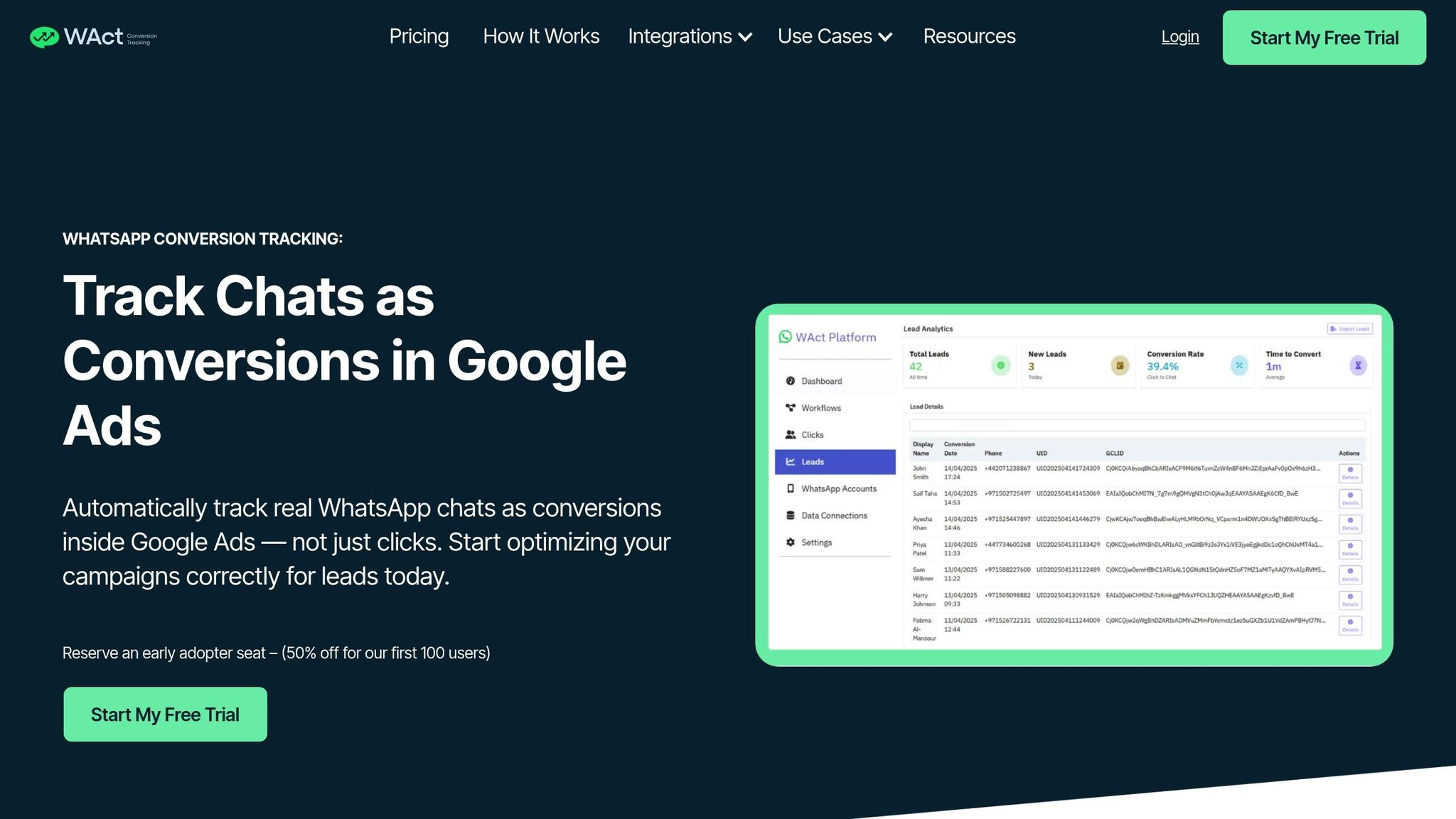
WAConversionTracking solves the tracking issue by preserving UTM data in the visitor’s browser as soon as they land on your site. Once the visitor clicks the WhatsApp button, the tool captures all relevant tracking details, including utm_source=bing, utm_campaign={Campaign}, utm_term={Keyword}, and the crucial msclkid (Microsoft Click ID).
This data is then automatically uploaded to Microsoft Ads, ensuring precise lead attribution. The setup is straightforward, requiring only account-wide auto-tagging and the addition of a single tracking script.
"For Usermaven to accurately attribute conversions, you must include the Ad ID (ad_id={AdId}) in your URL parameters. The Ad ID acts as a unique identifier that connects user behaviour directly to the specific ad."
- Usermaven Documentation
WAConversionTracking vs. Manual UTM Tracking
| Feature | Manual UTM Tracking | WAConversionTracking (Automated) |
|---|---|---|
| Implementation | Needs to be added manually to every ad URL | One-click setup via auto-tagging or templates |
| Lead Volume | Works for fewer than 200 leads per month | Handles thousands of leads |
| Data Consistency | Prone to human error and missing tags | Ensures accurate tagging for every ad |
| Lead Attribution | Hard to track if users leave and return | Tracks the entire customer journey |
| Conversion Upload | Requires manual entry into Microsoft Ads/CRM | Automatically uploads to ad platforms |
| User Interference | High | Minimal |
Manual tracking might work for businesses handling fewer than 200 leads monthly, but beyond that, it becomes too labor-intensive. Automated solutions like WAConversionTracking not only reduce errors but also provide the reliable data needed to scale campaigns effectively in the UAE’s competitive market.
Conclusion
UTM parameters play a crucial role in ensuring accurate tracking for Microsoft Ads. They help pinpoint which campaigns, ad groups, or keywords are delivering results. Auto-tagging simplifies this process, offering a consistent way to track ads while minimising the risk of manual errors. This precision is particularly important in markets like the UAE.
In the UAE, where WhatsApp is a prominent channel for lead generation, traditional analytics can struggle to track conversions originating from WhatsApp chats. WAConversionTracking solves this issue by retaining your Microsoft Ads UTM data in the visitor's browser and automatically uploading conversion details back to your ad account. This ensures every WhatsApp lead is attributed correctly.
While manual tracking might work for small-scale campaigns, it’s prone to mistakes. Automated solutions, on the other hand, eliminate these risks, providing the dependable attribution data needed to fine-tune Smart Bidding and cut unnecessary spending.
To make the most of your Microsoft Ads campaigns, enable auto-tagging at the account level, use Microsoft's testing tools to verify your setup, and integrate WAConversionTracking if WhatsApp is a key source of leads. These steps will give you the detailed insights needed to identify weak spots and amplify successful strategies - turning your campaigns into a powerful growth engine.
FAQs
Should I use auto-tagging, tracking templates, or final URL suffixes?
Auto-tagging is the preferred approach for Microsoft Ads (Bing) because it automatically appends UTM parameters to your URLs. This ensures consistent tracking and eliminates manual effort. Once set up, it works across all ads globally, making it a one-time, hassle-free solution.
If you need more tailored tracking - say, at the campaign, ad group, or individual ad level - you can opt for tracking templates or final URL suffixes. However, for most scenarios, auto-tagging remains the simplest and most efficient choice.
How do I stop duplicate UTMs from breaking my analytics data?
To avoid duplicate UTMs, take advantage of Microsoft Ads' auto-tagging feature. This tool automatically applies standard UTM parameters such as utm_source, utm_medium, and utm_campaign, saving you from manually adding them. Manually adding UTMs across multiple levels (like ad group or campaign) can lead to conflicts, so it's best to let the auto-tagging handle it.
Additionally, make it a habit to audit your URLs. Stick to consistent naming rules - use lowercase letters, avoid spaces, and ensure each URL is unique. These practices will help maintain clean and reliable analytics data.
How can I track WhatsApp leads back to Microsoft Ads reliably?
To keep tabs on WhatsApp leads effectively, add UTM parameters (like utm_source and utm_medium) to the URLs in your campaigns. These tags allow you to trace leads back to your Microsoft Ads campaigns when users click on the links and land on your page.
Make sure your landing page or CRM system captures these parameters for precise tracking. You can also use tools such as WAConversionTracking to streamline WhatsApp conversion attribution. However, UTM parameters remain a dependable and straightforward way to track leads.