
When running Google Ads campaigns, tracking performance is key to understanding what works and what doesn’t. UTM parameters are small tags added to your ad URLs that help identify traffic sources, ad clicks, and user actions. They’re essential for precise attribution, especially in the UAE, where ad budgets can be significant, and platforms like WhatsApp are widely used for lead generation.
Key Takeaways:
- What are UTM Parameters? Tags like
utm_source,utm_medium, andutm_campaignadded to URLs to track traffic and conversions. - Why Use Them? They differentiate between paid and organic traffic, track specific ads and keywords, and provide actionable data for budget allocation. This includes the ability to track WhatsApp button clicks as conversions.
- Setup Options: Use Google Ads' auto-tagging (GCLID) or manual UTM tagging. Auto-tagging is easier for Google Analytics users, while manual tagging works better with third-party tools.
- WhatsApp Tracking: Combine UTM parameters and tools like WAConversionTracking to link ad clicks to WhatsApp conversations, improving insights and targeting.
- Best Practices: Use consistent naming conventions, lowercase parameters, and avoid tagging internal links to maintain clean data.
UTM parameters help UAE marketers optimise ad spend by providing clear insights into campaign performance, from clicks to conversions. Proper setup, whether automated or manual, ensures you’re making data-driven decisions.
UTM Tracking in Google Ads (Templates + Custom Parameters)
sbb-itb-0a82e4d
How to Set Up UTM Parameters in Google Ads
How to Set Up UTM Parameters in Google Ads: Step-by-Step Guide
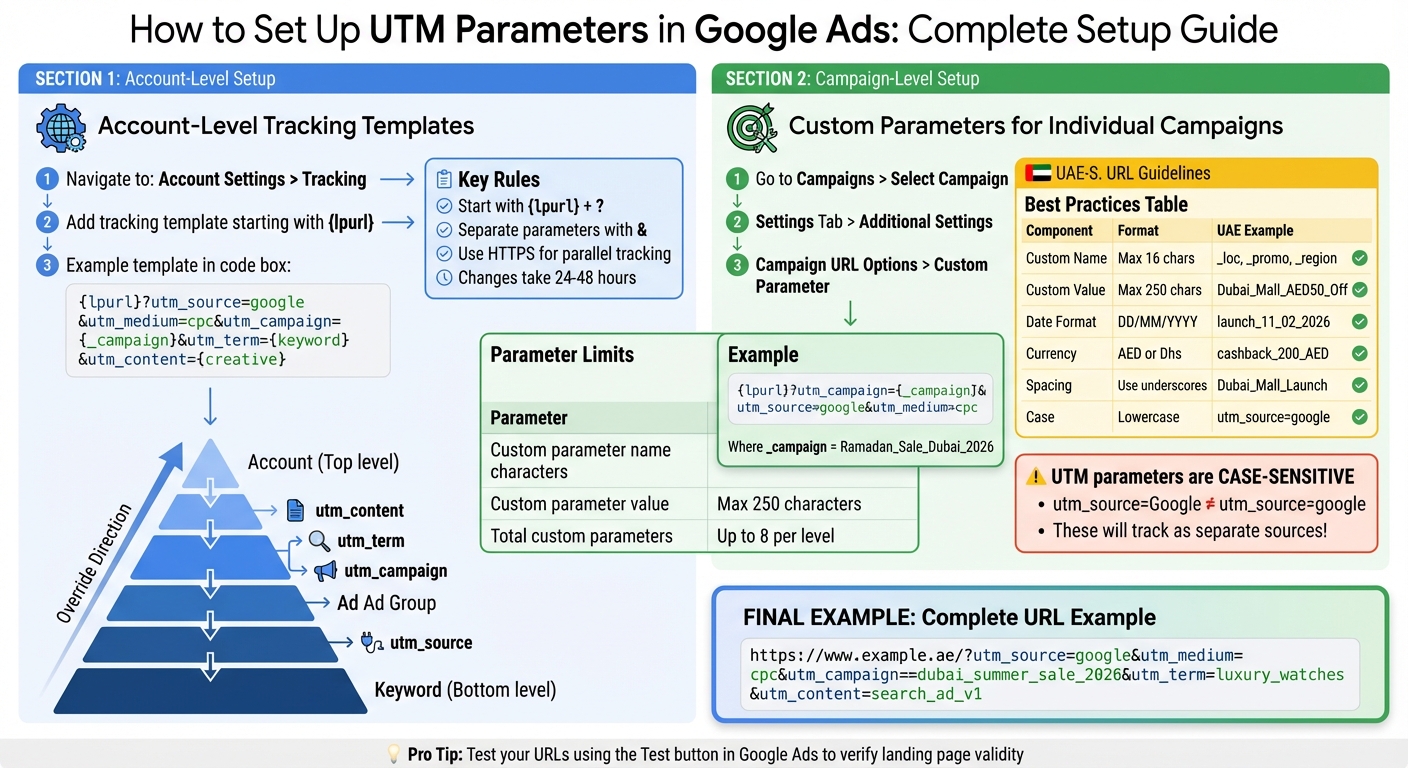
Setting up UTM parameters in Google Ads doesn’t require advanced technical skills. You can either use account-level tracking templates for consistency or add campaign-specific parameters for more detailed insights. Both approaches use ValueTrack parameters - dynamic placeholders that automatically fill in campaign data when someone clicks your ad. This is particularly helpful for tracking WhatsApp leads and fine-tuning your ad spend in UAE markets.
Setting Up Account-Level Tracking Templates
Using account-level tracking templates ensures a consistent tracking structure across all your ads, saving time and reducing potential errors. To set this up, navigate to Account Settings > Tracking in Google Ads. In the tracking template field, start with the {lpurl} parameter, which represents your landing page URL.
Here’s an example template:
{lpurl}?utm_source=google&utm_medium=cpc&utm_campaign={_campaign}&utm_term={keyword}&utm_content={creative}
- Begin with
{lpurl}followed by a question mark. - Use an ampersand (
&) to separate additional parameters.
Google Ads applies tracking templates in a specific hierarchy: Keyword > Ad > Ad Group > Campaign > Account. This means that a campaign-level template will override an account-level one. Changes usually take 24–48 hours to reflect in active ads. Always use HTTPS to ensure compatibility with parallel tracking, and verify your setup by clicking the Test button to confirm the URL leads to a valid landing page.
Now, let’s look at how to customise parameters for individual campaigns.
Adding Custom Parameters to Individual Campaigns
For more granular tracking, you can add custom parameters tailored to specific campaigns. Google Ads allows up to 8 custom parameters per level (except at the account level). Each custom parameter name can include up to 16 alphanumeric characters, while values can be up to 250 characters long.
To add custom parameters:
- Log in to Google Ads and select Campaigns from the left menu.
- Choose your campaign, go to the Settings tab, and expand Additional settings.
- Under Campaign URL options, find the Custom parameter field.
For example, if you’re running a Ramadan campaign in Dubai, set _campaign to Ramadan_Sale_Dubai_2026. Your tracking template would look like this:
{lpurl}?utm_campaign={_campaign}&utm_source=google&utm_medium=cpc
The underscore (_) prefix differentiates custom parameters from standard ValueTrack parameters. Alternatively, you can use the Final URL suffix field to append parameters directly to your landing page URL if required by your tracking tools.
Let’s go over some best practices for setting up URL parameters.
URL Parameter Setup Guidelines
A consistent UTM structure is key to avoiding fragmented data in Google Analytics. Keep in mind that UTM parameters are case-sensitive - utm_source=Google and utm_source=google will be tracked as separate sources. To ensure consistency, establish a naming convention for your campaigns. For UAE-based campaigns, use underscores instead of spaces (e.g., Dubai_Mall_Launch instead of Dubai Mall Launch). When adding dates, follow the UAE’s DD/MM/YYYY format (e.g., utm_term=launch_11_02_2026).
For currency references, stick to AED or Dhs (e.g., utm_content=discount_100_AED).
| Parameter Component | Requirement | UAE Example |
|---|---|---|
| Custom Name | Max 16 alphanumeric characters | _loc, _promo, _region |
| Custom Value | Max 250 characters | Dubai_Mall_AED50_Off |
| Date Format | DD/MM/YYYY | launch_11_02_2026 |
| Currency Format | AED or Dhs | cashback_200_AED |
Here’s an example of a complete URL for a Dubai summer campaign:
https://www.example.ae/?utm_source=google&utm_medium=cpc&utm_campaign=dubai_summer_sale_2026&utm_term=luxury_watches&utm_content=search_ad_v1
Tracking WhatsApp Conversions with UTM Parameters
WhatsApp is a widely used communication platform in the UAE, making it a go-to channel for businesses. However, figuring out which Google Ads campaigns lead to actual WhatsApp conversations - not just button clicks - can be tricky. To do this, you need to capture GCLID and UTM parameters as soon as users visit your landing page. Without these, it’s hard to pinpoint which ads or keywords sparked meaningful interactions.
How to Attribute WhatsApp Leads Using UTM Parameters
To trace a WhatsApp conversation back to a specific ad or keyword, your landing page must capture the GCLID (Google Click Identifier) and UTM parameters from the URL when users begin a chat. The GCLID is automatically added when you enable auto-tagging in your Google Ads settings. This identifier is key for importing offline conversions into Google Ads.
"This process allows you to track leads all the way back to the specific ad or keyword that drove them."
- Waseem Bashir, CEO of Apexure
For example, if a user clicks on an ad for "luxury watches Dubai" and lands on this URL:
https://www.example.ae/?gclid=abc123&utm_source=google&utm_medium=cpc&utm_campaign=dubai_summer_sale_2026&utm_term=luxury_watches
your system must capture these parameters before the WhatsApp chat begins. This step enables you to connect conversations to specific campaigns, giving you deeper insights into lead quality. Such detailed tracking paves the way for automated solutions.
Using WAConversionTracking for WhatsApp Attribution
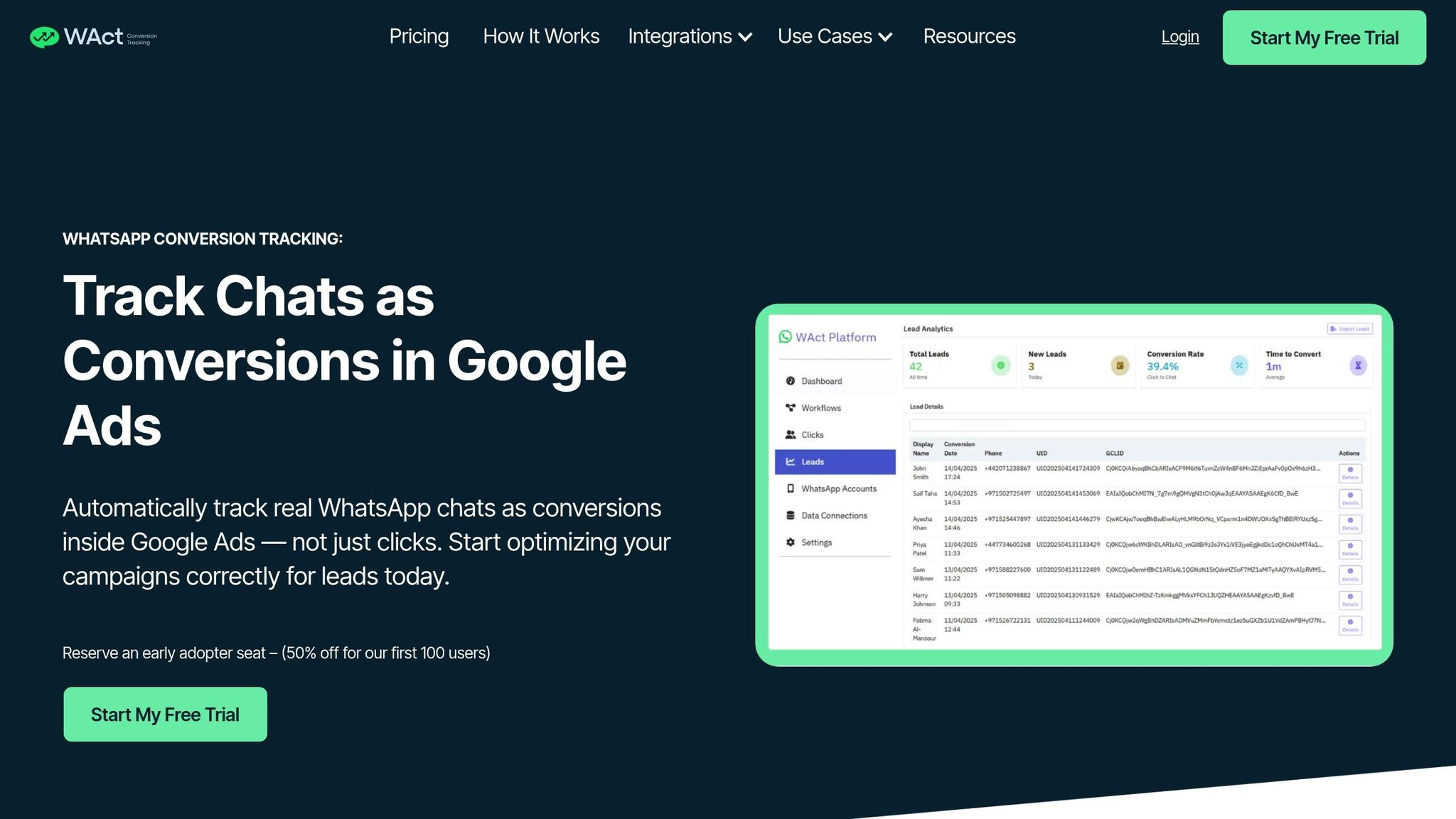
WAConversionTracking simplifies the process of connecting ad clicks to WhatsApp conversations and uploading conversion data to Google Ads. It automatically collects chat data alongside GCLID and UTM parameters, ensuring you’re tracking actual conversations rather than just clicks.
Once set up, WAConversionTracking generates a tracking script with a single click. It also integrates with Google Sheets and CRMs, keeping your lead data organised. This tool works seamlessly with the WhatsApp Business API, making it a great choice for agencies and e-commerce businesses managing large campaigns in the UAE.
By automating your tracking, you can use WhatsApp conversion data to refine your advertising strategies even further.
Improving Campaigns with WhatsApp Conversion Data
Having accurate WhatsApp conversion data in Google Ads allows Smart Bidding to focus on users who are more likely to start sales conversations. For example, if a specific keyword is consistently driving high-quality WhatsApp leads, you can increase your bids on that keyword while reducing spend on less effective ones.
"When set up correctly, Google Ads UTM parameters give you crystal-clear data about which ads are working, which keywords are worth their cost, and where you might be wasting your budget."
Analysing UTM Data in Google Analytics
Once you've set up UTM tracking, Google Analytics 4 (GA4) provides powerful tools to dive into your campaign data. By tracking WhatsApp conversions through UTM parameters, you can assess which campaigns, keywords, and ad variations deliver the best results for your business in the UAE.
Finding UTM Data in Google Analytics
To locate your UTM data, head to the Traffic Acquisition report under Reports > Acquisition. GA4 uses a "Session default channel group" to categorise traffic into groups like Paid Search or Organic Social. For a more detailed view, adjust the primary dimension to show Session source/medium, campaign, or manual term.
You can also use the Explorations feature to include UTM dimensions like "Session manual ad content" or "Session manual term" alongside metrics such as Conversions or Purchase revenue. This setup allows you to compare the performance of specific ad variations or keywords tagged with utm_content or utm_term.
GA4 separates data into Session-scoped dimensions (specific to a single visit) and First user-scoped dimensions (capturing the user's first interaction with your site). This distinction helps track both immediate and original acquisition sources.
| UTM Parameter | GA4 Dimension (Session Scope) | GA4 Dimension (First User Scope) |
|---|---|---|
utm_source |
Session source | First user source |
utm_medium |
Session medium | First user medium |
utm_campaign |
Session campaign | First user campaign |
utm_term |
Session manual term | First user manual term |
utm_content |
Session manual ad content | First user manual ad content |
"Never, ever use UTM parameters on links that point from one page of your website to another page of your same website... It destroys original source attribution." - Ali Izadi, Analytics Detectives
Keep in mind that GA4 is case-sensitive. For instance, utm_medium=cpc and utm_medium=CPC will appear as separate entries in your reports. To ensure consistency, always use lowercase for UTM parameters.
Attribution Modelling with UTM Data
Attribution modelling in GA4 helps pinpoint which touchpoints contribute to conversions. You can find this under Advertising > Attribution, where you'll see Attribution models and Attribution paths reports. GA4 offers three primary attribution models:
- Data-driven: Uses machine learning to allocate credit based on actual conversion behaviour.
- Paid and organic last click: Assigns full credit to the last paid or organic interaction, ignoring direct traffic.
- Google paid channels last click: Prioritises Google Ads clicks over other channels.
The data-driven model spreads credit across all touchpoints. For example, a user might first engage with a display ad (utm_campaign=ramadan_awareness_2026), later return via organic search, and finally convert through a retargeting ad (utm_campaign=ramadan_retargeting_2026). Instead of attributing the conversion solely to the last click, this model distributes credit across all interactions.
"Data-driven attribution distributes credit for the key event based on data for each key event... it uses your account's data to calculate the actual contribution of each click interaction." - Google Help Centre
If you're tracking WhatsApp leads for clients with WAConversionTracking, these attribution reports provide a holistic view of the user's journey - from the first ad impression to the WhatsApp chat.
Using Data to Improve Ad Spend
UTM data is a valuable tool for refining your ad budget. To focus on Google Ads traffic, filter the Traffic Acquisition report by setting the Session source/medium dimension to "google/cpc". Add a secondary dimension like Session manual term to identify top-performing keywords.
For example, you might find that "luxury property Dubai Marina" leads cost AED 45 each, while "cheap flats Dubai" leads cost AED 180. Adjust your budget to prioritise the more cost-effective keywords. Similarly, use utm_content to A/B test different ad headlines or call-to-action buttons, helping you identify the messaging that resonates most.
"UTM parameters are helpful for understanding where your traffic is coming from and uncovering the true story behind your analytics numbers." - Julian Juenemann, Founder, MeasureSchool
You can also create custom segments in Explorations by right-clicking on a UTM value and selecting "Create segment from selection." This is particularly useful for comparing seasonal campaigns, such as Ramadan 2026 versus Eid 2026.
Watch out for "Unassigned" traffic in your Channel Group reports. This often indicates that your UTM values don't match GA4's default channel definitions. Adding Session source/medium as a secondary dimension can help identify and fix these issues.
Finally, keep in mind that GA4 data processing can take 24–48 hours. Avoid making budget decisions based on incomplete, same-day data.
Best Practices and Common Mistakes
Getting your UTM setup right is just the beginning. To ensure your data stays accurate and easy to interpret, following best practices is key. Research shows that 30% of large organisations struggle with reliable UTM tagging, while using standardised naming conventions can improve attribution accuracy by 29%.
Using Consistent Naming Conventions
Consistency in naming conventions is critical. For instance, always use lowercase letters because GA4 treats different cases as separate sources. Imagine a Dubai real estate agency accidentally creating "Ramadan-2026", "ramadan-2026", and "RAMADAN_2026" - this would fragment campaign performance data, making analysis unnecessarily complicated.
Stick to hyphens (-) as word separators. Avoid spaces or underscores, as spaces convert to %20 and clutter your reports, while underscores can confuse users. For example, spring-sale-2026 is much cleaner than spring sale 2026 or spring_sale_2026.
A shared UTM tracking sheet is invaluable. This centralised document ensures everyone uses approved terms for source, medium, and campaign names. For example, standardise "cpc" for paid search instead of alternating between "cpc", "paid-search", and "PPC". Adding date identifiers like 2026-02 or 2026-Q1 to campaign names also simplifies time-based comparisons.
"UTM parameters are the bedrock of campaign attribution. Used correctly, they provide crystal-clear insights. Used poorly, they create a data nightmare that renders your analytics untrustworthy." - UTM Genius
For Google Ads, take advantage of ValueTrack parameters such as {campaignid}, {adgroupid}, and {keyword} to automate tagging and minimise errors. Instead of manually entering utm_term=luxury-villas-dubai, use utm_term={keyword} in your tracking template. Google Ads will then dynamically insert the actual search term, saving you time and effort.
Common UTM Mistakes to Avoid
Even with the best intentions, some mistakes can derail your tracking efforts.
Don’t tag internal links. Doing so resets the original traffic source and messes up conversion attribution. For example, if someone clicks a Google Ad (utm_source=google) and then interacts with an internally tagged banner (utm_source=homepage), GA4 will credit the conversion to "homepage" instead of Google Ads.
Inconsistent naming is another common issue. Mixing terms like "social", "social-media", and "social_media" for the same medium makes it impossible to get a clear picture of your campaign's performance. Shockingly, 20% of companies use UTM parameters so inconsistently that their data becomes unreliable.
Here are a few more tips to avoid pitfalls:
- Always start URLs with
?and separate parameters with&. - Never include personally identifiable information (PII) in UTM parameters, as this violates Google Analytics policies.
- Test your tagged URLs in an incognito browser session to confirm they appear correctly in GA4's Realtime report.
- Conduct monthly audits of your Traffic Acquisition reports to catch errors like "not set" values or typos.
Manual vs. Auto-Tagging in Google Ads
Choosing between manual and auto-tagging can significantly impact your data accuracy.
Google Ads provides two tagging options: auto-tagging (using the Google Click Identifier, or gclid) and manual tagging (using UTM parameters). Auto-tagging is the default and automatically captures granular data such as keyword text, match type, and search query. It’s a hassle-free option for those relying on Google Analytics.
Manual tagging, however, is necessary when you're working with third-party analytics tools or CRMs like HubSpot or Salesforce, which can’t interpret gclid values. In these cases, you’ll need to manually add UTM parameters to your URLs.
| Feature | Auto-Tagging (gclid) | Manual (UTM) |
|---|---|---|
| Setup Effort | Low (one-click toggle) | High (manual URL creation) |
| Data Accuracy | High (eliminates typos) | Moderate (prone to errors) |
| Data Depth | Captures keyword, query, match type | Limited to manual entries |
| Platform Support | Google Ads only | Works across all platforms |
| Maintenance | Automatic | Requires documentation |
Avoid using both methods at the same time unless you enable "Allow manual tagging to override auto-tagging" in GA4 settings. Otherwise, you might encounter data discrepancies or "not set" values. For most UAE marketers running Google Ads campaigns, auto-tagging is the better choice. It’s reliable, requires minimal upkeep, and integrates seamlessly with GA4.
Conclusion
By applying the setup and tracking methods outlined earlier, UTM parameters can significantly refine your campaign performance. They elevate your Google Ads tracking by offering detailed attribution, pinpointing which keywords, ad groups, and creative elements drive traffic and conversions. This level of insight helps you cut spending on underperforming campaigns and channel your budget into higher-performing assets.
"When set up correctly, Google Ads UTM parameters give you crystal-clear data about which ads are working, which keywords are worth their cost, and where you might be wasting your budget." - MonsterInsights
For marketers in the UAE focusing on WhatsApp conversions, tools like WAConversionTracking paired with UTM parameters can link real WhatsApp chats directly to your ads. This enables Smart Bidding to prioritise leads that result in meaningful customer interactions.
Key Takeaways
To ensure reliable UTM data, consistent naming conventions and automated tracking templates are a must. Stick to lowercase values, standardise naming across your team, and use tracking templates with ValueTrack parameters like {keyword} and {campaignid} to reduce manual errors. These steps help maintain clean and actionable analytics.
UTM parameters go beyond simple click tracking by revealing post-click behaviour, such as time spent on the page, bounce rates, and completed events. This insight allows you to optimise landing pages, compare performance across channels, and conduct precise A/B tests using the utm_content parameter. The outcome? Better budget allocation and consistently improving campaigns.
Next Steps for Marketers
To make the most of your ad spend, start by auditing your UTM setup in GA4 Traffic Acquisition reports. Look for "(not set)" values or inconsistent naming patterns, establish team-wide naming conventions, and implement account-level tracking templates in Google Ads for automated parameter insertion.
If WhatsApp conversions are part of your strategy, automate the capture of GCLID and UTM parameters to enhance Smart Bidding's effectiveness.
"Adding Google Ads UTM parameters isn't just a technical step - it's a strategic move that sets the foundation for smarter marketing." - Waseem Bashir, CEO of Apexure
FAQs
Do I need UTM tags if auto-tagging (gclid) is on?
If auto-tagging (gclid) is enabled, UTM tags are not required. Auto-tagging automatically adds tracking parameters to your Google Ads URLs, making it easy to track campaign performance without the need for manual tagging.
How can I track real WhatsApp chats (not just clicks) from Google Ads?
Tracking real WhatsApp conversations - not just clicks - from Google Ads requires specific tools since Google Ads doesn’t offer this feature directly. Tools like WAConversionTracking can bridge the gap by connecting WhatsApp interactions to Google Ads conversions. This is achieved by integrating the WhatsApp Business API, using custom click-to-chat links, and matching messages with Google Click IDs (GCLID). With this setup, you can accurately track actual conversations and even upload offline conversions for detailed reporting.
Why is my GA4 traffic showing as “Unassigned” or “(not set)”?
Your GA4 traffic might show up as “Unassigned” or “(not set)” for several reasons. Common culprits include missing or improperly configured UTM parameters, misaligned tags, cross-domain tracking problems, or gaps in data attribution. To address this, start by checking your UTM parameters to ensure they're correctly set up. Next, verify that your tags are firing as expected. Finally, review your cross-domain tracking settings to ensure everything is properly aligned. Fixing these areas can enhance your campaign tracking and provide clearer insights into your traffic.