
Want to track WhatsApp button clicks as conversions in Google Ads? Here's how you can measure clicks on your WhatsApp buttons - like "Chat with us" links on landing pages - using tools like Google Tag Manager (GTM), Google Tag (gtag.js), and Google Analytics 4 (GA4). This helps you understand which campaigns drive the most engagement and optimise your ad spend.
Key Steps:
- Set Up Your Tools: Use GTM,
gtag.js, or GA4 to track clicks. Ensure your website has a WhatsApp button (e.g.,wa.meorapi.whatsapp.com/send) and your Google Ads account is linked to GA4. - Create Triggers in GTM: Enable click variables, define triggers for WhatsApp links, and link them to a Google Ads conversion tag.
- Set Up Events in GA4: Track clicks with custom events like
whatsapp_clickand mark them as conversions. Link your GA4 property to Google Ads for better reporting. - Test Your Setup: Use GTM Preview or GA4 DebugView to ensure tracking works correctly.
UAE-Specific Notes:
- Use AED as your currency and the DD/MM/YYYY date format.
- Focus on tracking message initiations since WhatsApp voice/video calls are restricted in the UAE.
While these methods track clicks effectively, they don't show if a conversation or sale occurs. For deeper insights, tools like WAConversionTracking can log actual WhatsApp conversations and link them to your ads, providing more actionable data for optimising campaigns.
Bottom Line: Tracking WhatsApp clicks is a great starting point, but combining it with conversation tracking can help you make smarter decisions about your ad spend.
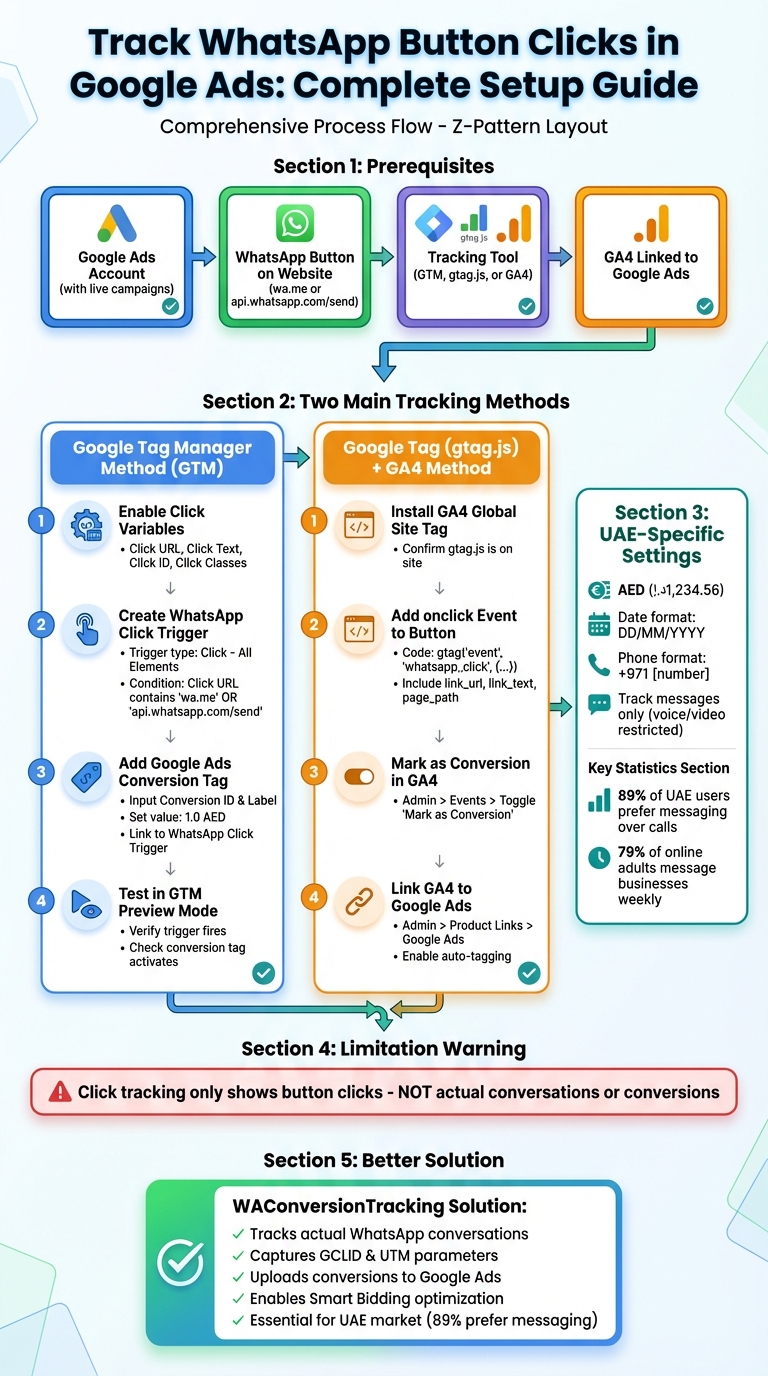
How to Track WhatsApp Button Clicks in Google Ads - Complete Setup Process
How to Track WhatsApp Button Clicks in Google ads & GTM?
Setting Up for WhatsApp Click Tracking
Once you're familiar with the constraints of click tracking, it's time to prepare your environment for accurate data collection. By gathering the right tools and properly configuring your website, you can ensure that your tracking setup is reliable from the start. Laying these foundations is key to smooth and efficient click tracking across all platforms.
Required Tools and Accounts
You'll need an active Google Ads account with live campaigns already running. On your website, ensure there's a WhatsApp button or link for visitors to click. This could be a floating chat widget, a button in the header, or a "Contact us on WhatsApp" link on your landing page. For tracking, use tools like Google Tag Manager (GTM), gtag.js, or GA4. If you're using GA4, double-check that it's correctly set up and receiving data as expected.
Additionally, make sure your tracking settings align with UAE-specific requirements.
UAE-Specific Settings
To match local standards, set your Google Ads currency to AED (د.إ), so costs appear in the format د.إ1,234.56, and use the DD/MM/YYYY date format (e.g., 17/12/2025). Keep in mind that while WhatsApp messaging works seamlessly in the UAE, voice and video calls are restricted. Therefore, focus on tracking message initiations only.
When setting up message assets in Google Ads, select "United Arab Emirates" as your country and provide your WhatsApp Business number in the international format starting with +971.
Finding WhatsApp Buttons on Your Website
To track clicks on your WhatsApp button, you first need to locate it in your website's code. Right-click on the button and select "Inspect Element". Look for an href containing wa.me/ or api.whatsapp.com/send, or search for specific CSS classes or IDs like whatsapp-button or whatsapp-chat. These identifiers will help you target the button accurately. In some cases, the button might use a tel: link format. If you're using a third-party widget, such as 2Chat, you'll find the configuration code in your website's JavaScript, which defines the associated phone number.
For UAE-specific formatting, ensure that phone numbers begin with +971, followed by the area or mobile code (without the leading zero). For example:
- +971 4 123 4567 for a Dubai landline
- +971 50 987 6543 for a mobile number.
Finally, assign a unique Click ID to the button to ensure your tracking tag fires only for that specific element.
Tracking Clicks with Google Tag Manager
Using Google Tag Manager (GTM) to track WhatsApp button clicks is a straightforward way to monitor user interactions without altering your website's code. The process involves enabling GTM's built-in click variables, creating a trigger to detect WhatsApp links, and connecting that trigger to a Google Ads conversion tag. This approach allows you to decide exactly what gets tracked and when.
Creating a Trigger for WhatsApp Clicks
Start by enabling GTM's built-in click variables. In your GTM dashboard, head to "Variables", click "Configure" under the "Built-In Variables" section, and enable options like Click URL, Click Text, Click ID, and Click Classes. These will capture the necessary details for every click.
Next, create a new trigger. Go to "Triggers", click "New", and select the Click – All Elements trigger type. This ensures that all button formats are covered, whether they are anchor tags (<a>), buttons (<button>), or even styled <div> elements. If your WhatsApp button is always an anchor tag, you can simplify this by choosing the Just Links trigger type instead.
Under "This tag fires on", select Some Clicks and define conditions to identify WhatsApp links. For example, set the trigger to fire when the Click URL contains one of the following:
wa.meweb.whatsapp.comapi.whatsapp.com/send?phone=
This ensures the trigger activates only for WhatsApp button clicks. Save the trigger with a name like "WhatsApp Click Trigger" for easy identification.
For added flexibility, you can create a Custom JavaScript Variable that returns true for WhatsApp URLs.
Finally, link this trigger to a Google Ads conversion tag to complete the process.
Adding a Google Ads Conversion Tag
With the trigger ready, the next step is to create the conversion tag. Navigate to "Tags", click "New", and choose Google Ads Conversion Tracking as the tag type. You’ll need your Conversion ID and Conversion Label, which can be found in your Google Ads account under Tools > Conversions. These details are part of the event snippet used for tracking.
Input the Conversion ID and Conversion Label, and set the Conversion Value to 1.0 with the currency set to AED, following UAE standards. Under the "Triggering" section, select the "WhatsApp Click Trigger" you created earlier. This ensures the tag fires only when a WhatsApp button is clicked.
When configuring the conversion action in Google Ads, make sure to select Click instead of Page load. This ensures conversions are recorded based on button clicks, not page views.
Once everything is set up, you’re ready to test and debug.
Testing and Debugging Your Setup
Use GTM's Preview mode to test your setup. While in Preview mode, click the WhatsApp button and check that the WhatsApp Click Trigger fires as expected in the GTM interface.
Verify that the Conversion Tag is firing correctly. If you're using GA4, open DebugView to monitor events or check the Realtime view to confirm the whatsapp_click event is being recorded. Ensure all event parameters, like the Click URL, match the intended WhatsApp link, and verify that any custom parameters are populated properly.
Once you’ve confirmed that everything works as planned in both GTM Preview and GA4, you can confidently publish your container changes. For additional troubleshooting, you can use the Google Tag Assistant to identify and resolve any issues with your conversion tracking setup.
sbb-itb-0a82e4d
Tracking Clicks with Google Tag and GA4
If you're not using Google Tag Manager, you can still track WhatsApp button clicks by leveraging Google Tag (gtag.js) and Google Analytics 4 (GA4). This method involves embedding a code snippet into your website, where an event handler is added to the WhatsApp button. Each time the button is clicked, a custom event is sent to GA4.
Using Google Tag to Track WhatsApp Clicks
Start by ensuring that the Google Analytics 4 global site tag (gtag.js) is properly installed on your site, following GA4's setup guidelines. You can locate this snippet in your GA4 property's data stream settings. After confirming the tag is in place, add an onclick attribute to your WhatsApp button to trigger a custom event.
Here’s an example of the code you can use:
onclick="gtag('event', 'whatsapp_click', {'link_url': 'https://wa.me/971501234567', 'link_text': 'Chat with us', 'page_path': window.location.pathname});"
Replace the link_url with your actual WhatsApp number and adjust the link_text to fit your button's label. This setup sends a custom event named whatsapp_click to GA4, along with additional details like the WhatsApp link, button text, and the current page path.
Setting Up GA4 Conversion Events
Once GA4 starts recording these WhatsApp click events, you can mark them as conversions. To do this, go to the Admin section in your GA4 property, then click on Events. Locate the custom event whatsapp_click and toggle the Mark as Conversion option.
If you want to track these conversions in Google Ads, you’ll need to link your Google Ads account with your GA4 property. Navigate to Admin > Product Links > Google Ads in GA4 and complete the linking process. Make sure auto-tagging is enabled in your Google Ads account to ensure conversion identifiers are passed correctly. Once the accounts are linked, your WhatsApp click conversions will show up in Google Ads, allowing you to refine and optimise your campaigns using this data.
However, while this method is effective for capturing click events, it doesn’t provide insights into what happens after the click.
Limitations of the Google Tag Method
Although straightforward to implement, this approach has some clear limitations. It only tracks the moment a user clicks the WhatsApp button but doesn’t provide any data on what happens afterward. As Margub Alam explains:
"WhatsApp Click Tracking refers to monitoring when a user clicks a WhatsApp chat link or button on your website. This data helps you understand: How many users are engaging with your business via WhatsApp. Which pages or campaigns are driving WhatsApp interactions. Conversion attribution when WhatsApp is used as a lead or sales channel".
Unfortunately, this method doesn’t reveal whether a conversation actually took place, how long it lasted, or whether it resulted in a conversion. Once users leave your website after clicking the WhatsApp button, their actions are no longer tracked. It’s also worth noting that GA4’s Enhanced Measurement feature automatically tracks outbound links and file downloads but doesn’t capture clicks on internal elements or buttons that aren’t standard HTML <a> links.
In the next section, we’ll explore how WAConversionTracking addresses these shortcomings.
Why WAConversionTracking Provides Better Data
Limitations of Click-Based Tracking
Click-based tracking has its drawbacks. While it can tell you when someone clicks on an ad, it stops short of showing what happens next - whether a conversation starts or a conversion takes place. This leaves marketers relying on surface-level metrics like impressions and clicks, which don’t paint a full picture of actual business outcomes. Without insights into post-click actions, it’s tough to pinpoint which keywords are driving results. Plus, this lack of data limits the use of advanced bid strategies in Google Ads, such as Maximise Conversions, Target CPA, or Target ROAS. To make matters worse, inflated clicks from bots or poorly designed campaigns can give a false sense of success, skewing performance metrics.
How WAConversionTracking Solves These Problems
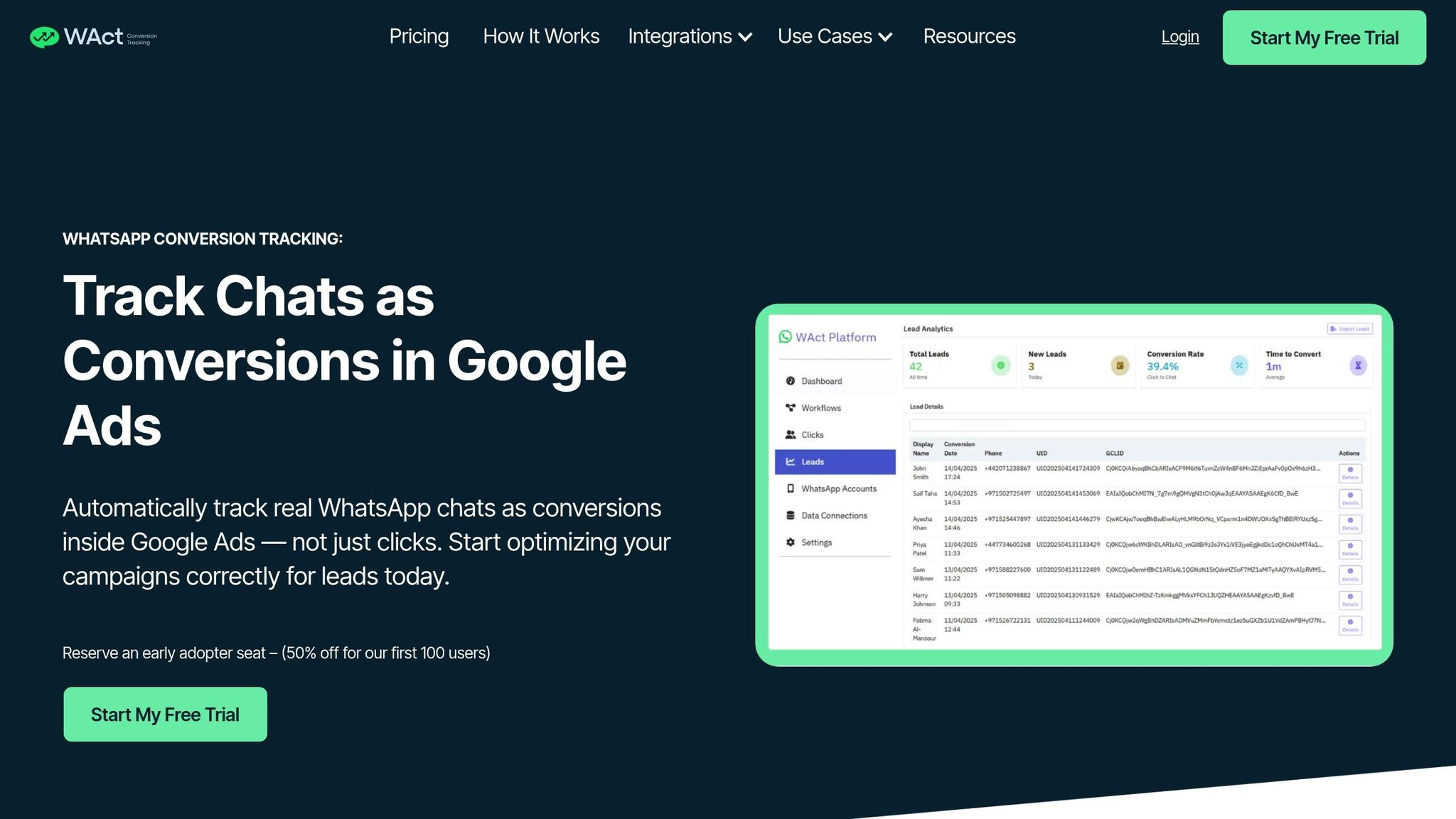
WAConversionTracking steps in to fill these gaps. Unlike click-based tracking, this tool focuses on actual WhatsApp conversations. Whenever a user sends a message via WhatsApp, the tool instantly logs the event and uploads it to Google Ads as a conversion, tracking "Conversations Started". It also captures key attribution details, such as GCLID and UTM parameters, linking each conversation back to the specific ad that triggered it. Beyond that, you can import offline conversions - like finalised sales or signed contracts - into Google Ads, giving you a more comprehensive view of your campaign’s performance. With this precise data, Smart Bidding strategies become more effective, helping to minimise wasted spend and maximise ROI.
Choosing the Right Tracking Method
If your campaign only requires basic engagement metrics, tools like Google Tag Manager or GA4 might do the job. But for campaigns focused on driving real conversions - especially in scenarios with high lead volumes - WAConversionTracking is the smarter option. In the UAE, where 89% of users prefer messaging businesses over making phone calls, tracking WhatsApp conversions isn’t just useful; it’s essential. The choice boils down to what matters more to your business: tracking clicks that show interest or tracking conversations and conversions that reflect actual results. By focusing on verified leads, you ensure your strategy is built on meaningful data, not just vanity metrics.
Conclusion
Summary of Methods
When it comes to tracking clicks, there are two main approaches: using GTM triggers paired with conversion tags or leveraging Google Tag alongside GA4 for event tracking. Both methods effectively log initial clicks but fall short in confirming whether those clicks lead to meaningful interactions. While these setups are helpful for identifying potential issues, such as poorly placed buttons or landing page design flaws, they don’t provide the depth needed to refine campaigns for results that truly matter to the business. This gap underscores the importance of adopting advanced conversion tracking for more actionable insights.
Why Accurate Lead Tracking Matters
Click tracking has its limits, especially in a tech-savvy region like the UAE, where internet and smartphone usage is among the highest globally. Here, capturing verified WhatsApp conversations is crucial for staying competitive. Unlike basic click data that only scratches the surface, WAConversionTracking records every WhatsApp message along with key attribution details, such as GCLID and UTM parameters, and uploads them directly as conversions to Google Ads. With 79% of online adults engaging with businesses via messaging apps at least once a week, understanding which interactions turn into genuine conversations can significantly impact how ad budgets are allocated. This level of accuracy ensures that Smart Bidding strategies like Maximise Conversions or Target ROAS deliver better results, ultimately leading to smarter spending and more effective campaigns.
FAQs
How can I track WhatsApp button clicks as conversions in Google Ads for the UAE?
To track WhatsApp button clicks as conversions in Google Ads within the UAE, you can use Google Tag Manager (GTM) to set up triggers that identify URLs like "wa.me" or "web.whatsapp.com". Make sure all click variables are enabled in GTM, and create GA4 event tags with separate triggers for mobile and desktop if needed. Use GTM’s preview mode to test your setup, and verify that the events appear correctly in GA4 DebugView.
When implementing tracking, ensure you follow localised formats for dates, currency (AED), and measurement units (metric) to match UAE standards. While click tracking provides valuable insights into user interactions, it doesn’t automatically signify a conversion. Be mindful of cultural preferences and behaviours when designing your tracking strategy to maintain relevance for UAE audiences.
What challenges should I be aware of when using Google Tag Manager for tracking WhatsApp button clicks?
Using Google Tag Manager (GTM) to track WhatsApp button clicks can be tricky. If tags are not set up correctly, you might end up with inaccurate tracking data, which could skew your campaign insights. On top of that, granting access to multiple users can open the door to potential security issues, like unauthorised changes or even malicious code being added.
Another thing to watch out for is overloading your site with too many tags. This can slow down your website, which could hurt the user experience. And let’s not forget, debugging complex triggers in GTM can be a real headache, often requiring advanced technical know-how.
To keep things running smoothly, it’s important to stick to best practices and regularly review your GTM setup to ensure everything is accurate and secure.
Why should I use WAConversionTracking instead of basic click tracking for WhatsApp ads?
WAConversionTracking stands out as a valuable tool because it allows you to track WhatsApp leads as actual conversions, offering deeper insights into customer interactions and your return on investment (ROI). Unlike simple click tracking, which only counts button clicks, this tool verifies if those clicks result in genuine leads or sales.
With this level of insight, you can prioritise outcomes that matter and fine-tune your ad campaigns for better performance, ensuring your marketing efforts directly support your business objectives.